Search and Advanced Filtering
This article will demonstrate how to search for a text within any of the fields across the pages and how to conduct advanced searches using keywords
From the Data Governance Tool Main home page, click Menu
 on the top left corner of the screen.
Under Menu, select the second option – DataMaps

On the Data Maps screen, click System Names to view the table of System Names and their related information
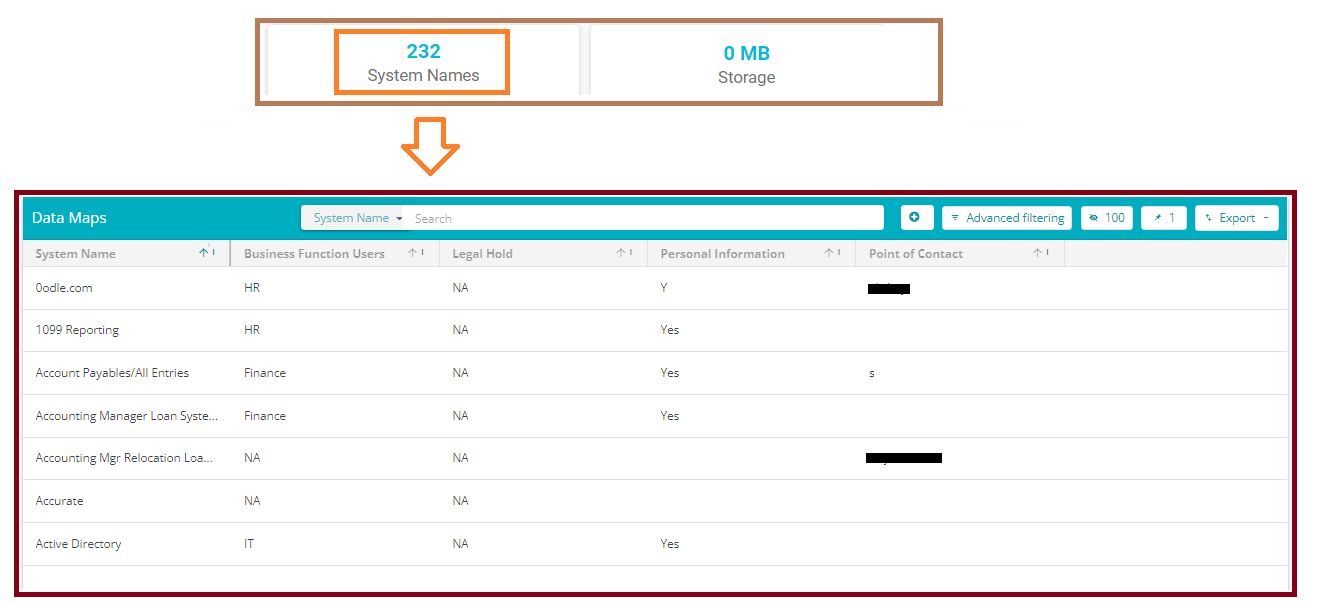
To search for any particular field or System Name, type in the relevant keyword in the search bar
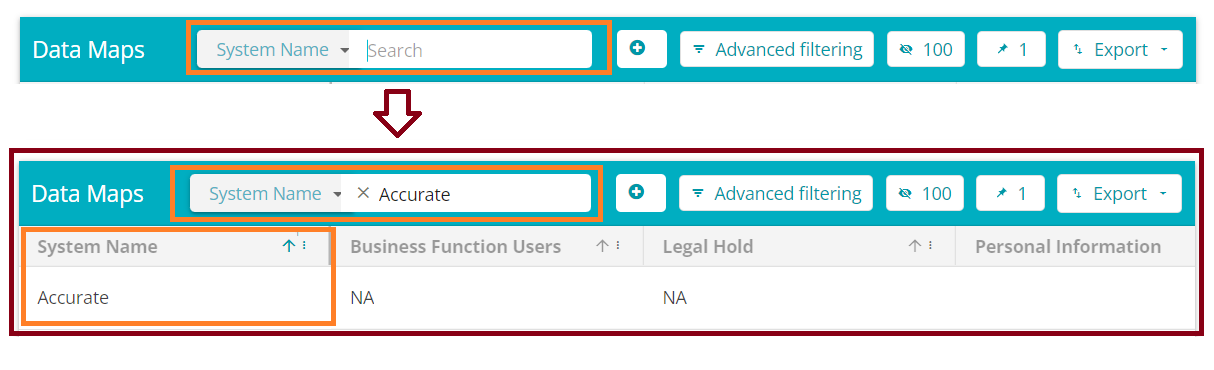
There are 2 Types of search options All & System Name
Note: All will run the search on all fields and System Name will only search on the system name field

Advanced Filtering
To search for data in a specific field, click Advanced Filtering
Select either the ‘+And Group’ or the ‘+Or Group’
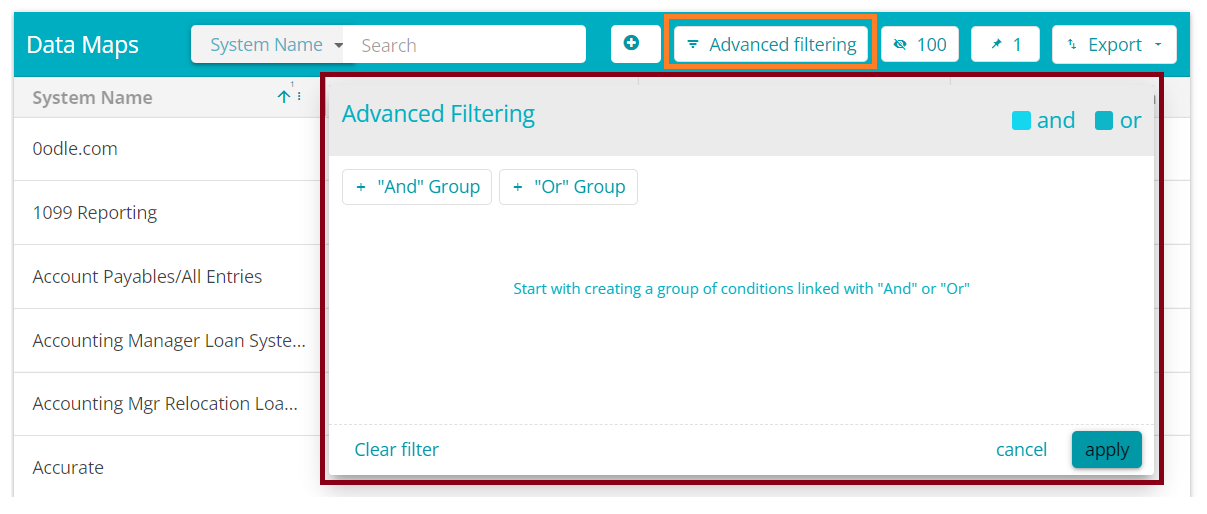
The ‘+And Group’ filters the information, satisfying each condition at a time. This means that the first condition is satisfied, the information is obtained and on this filtered information, the second condition is applied and so on. The ‘+Or group’ considers all conditions at the same time.
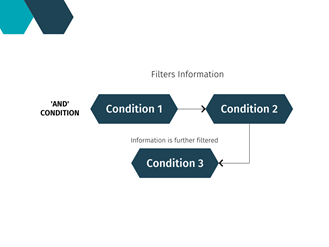
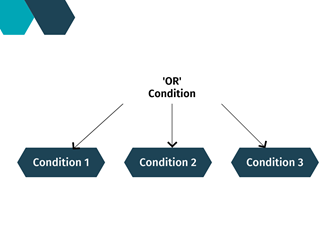
- The Advanced Filtering allows you to further search the filtered information using complex search criteria like ‘=’, ‘starts with’, etc. and can be paired with multiple ‘And’ or ‘Or’ conditions.
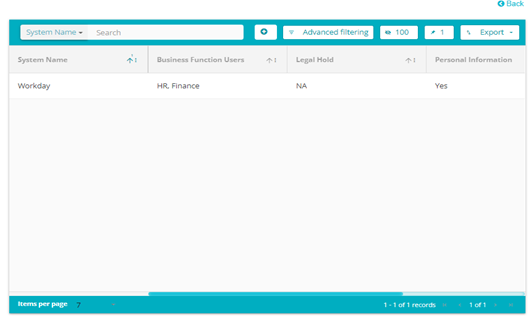
For example: If you want information on System Name ‘Workday’, then click Advanced Filtering
Select the ‘+And’ Group
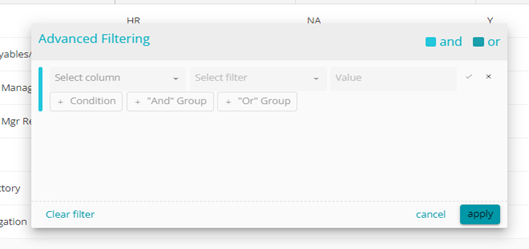
Under ‘Select Column’ choose ‘System Name’ Under ‘Select Filter’, select ‘starts with’
Under ‘Value’, type in W
Click the tick mark next to ‘Value’
Click 'Apply'
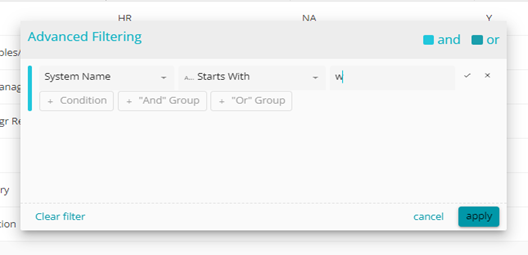
- This will display all System Names starting with the letter ‘W’
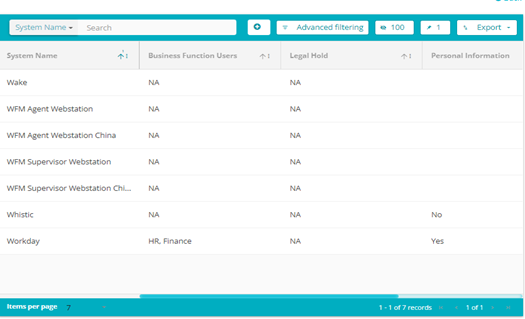
If you wish to further filter the options to show only ‘Workday’
Click on Advanced Filtering, your previous condition will be visible
Click on ‘+ And Group’ this will obtain results only from the previously filtered information i.e., System Names starting with the letter ‘W’
Under ‘Select Columns’, choose ‘Business Function Users’
Under ‘Select Filter’, choose ‘starts with’
Under ‘Value’ type H, for HR as HR is a Business Function User of the system ‘Workday’
Click on the tick mark next to ‘Value’
Click Apply
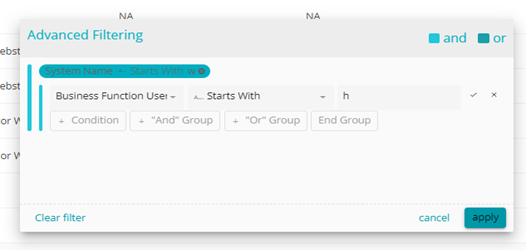
System Name "Workday" will be displayed now